

 dudurocha
 I changed one hidden Gemini setting; now it actually gives me good answers

Parth is a technology analyst and writer specializing in the comprehensive review and feature exploration of the Android ecosystem. His work focus on productivity apps and flagship devices, particularly Google Pixel and Samsung mobile hardware and software.
He provides expert guidance on productivity software, system optimization, and the advanced functionalities that allow users to maximize their device’s potential. His analyses are crucial resources for readers seeking to master complex operating system features and streamline their digital workflows.
When he is not busy with technical analysis and software evaluation, Parth dedicates his time to watching K-dramas, studying mobile technology trends and the role of artificial intelligence.
My initial experience with Gemini was a cycle of frustration. I knew it was smart, but it felt like every other AI chatbot where I had to copy and paste documents or dig through my prompts.
The turning point — the tiny adjustment that changed everything — was enabling the Google Workspace toggle in Gemini settings.
This simple action granted the AI the secure ability to connect the dots across my digital life.
Instead of starting from scratch, I could now ask Gemini to summarize key takeaways from files across my Drive, find crucial information, and use my personal history and content to boost productivity.
The frustration of generic AI
It doesn't really know me
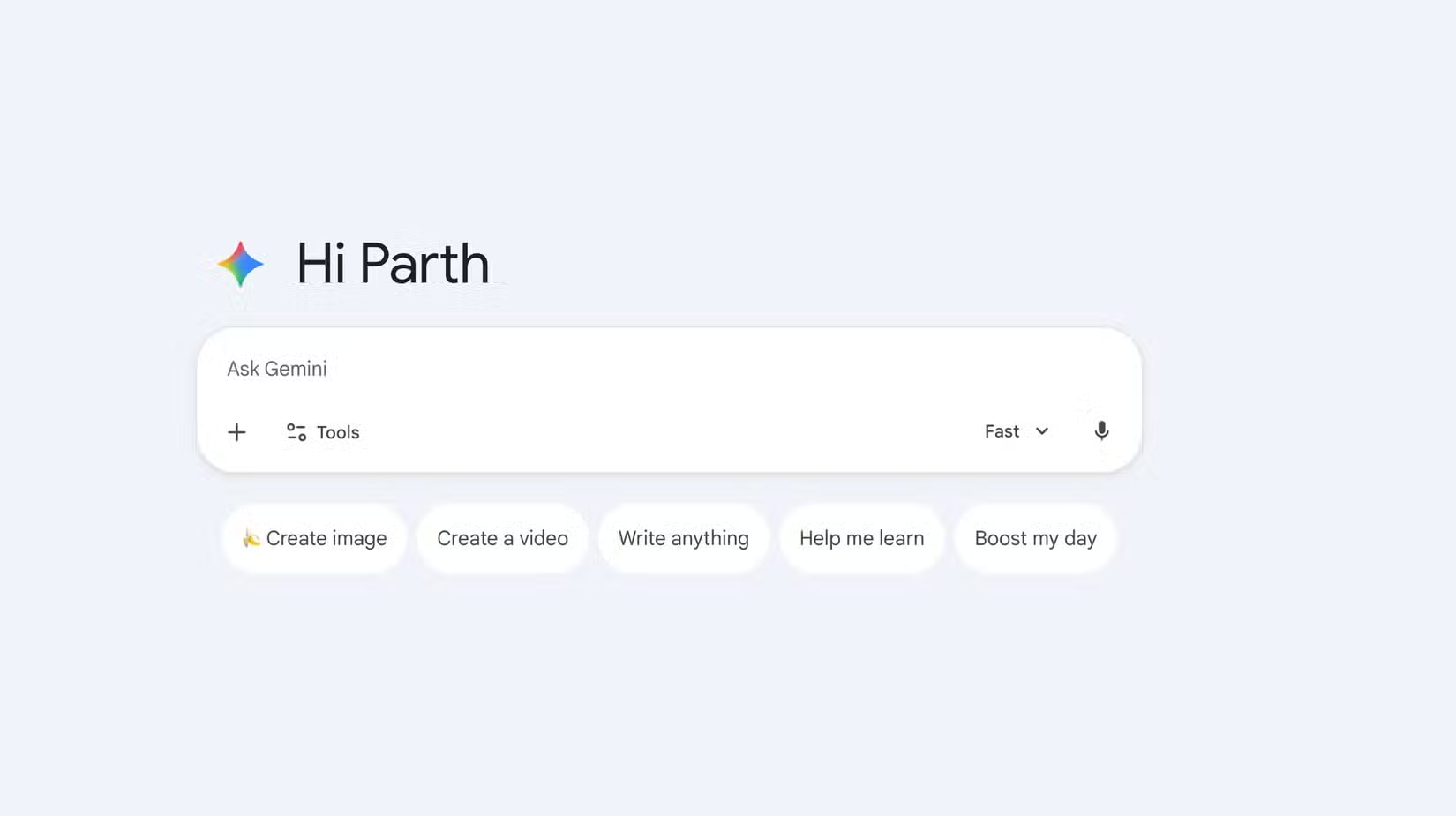
Before I made that one small adjustment, using Gemini often felt like shouting intelligent questions into a black hole.
It wasn’t that the AI was stupid — it just didn’t know me. It was smart, but Gemini was also generic, and that became the root of my frustration.
Every time I started a new chat, Gemini treated me like a stranger.
It could tell me the capital of France or explain the pros and cons of self-hosting, but if I asked, “What are my priorities for this week?” or “Summarize the findings from that project document I saved last month,” it would give me a helpless response.
It was powerful, yet completely isolated from my reality. If I wanted Gemini to help me write a project summary, I had to open Google Drive, find the project document, copy and paste the entire text, and wait for it to process.
This process was exhausting. It defeated the purpose of a seamless AI assistant. Instead of making my workflow easier, it added multiple steps to give the AI the context it needed.
I spent more time gathering my own data than utilizing the AI’s power.
Enabling Workspace access to Gemini
Giving Gemini access to my docs helped it get to know me better
The information I needed was there, but it was scattered across a thousand files and emails.
Gemini was supposed to cut through that clutter, but without access, it was just another AI tool.
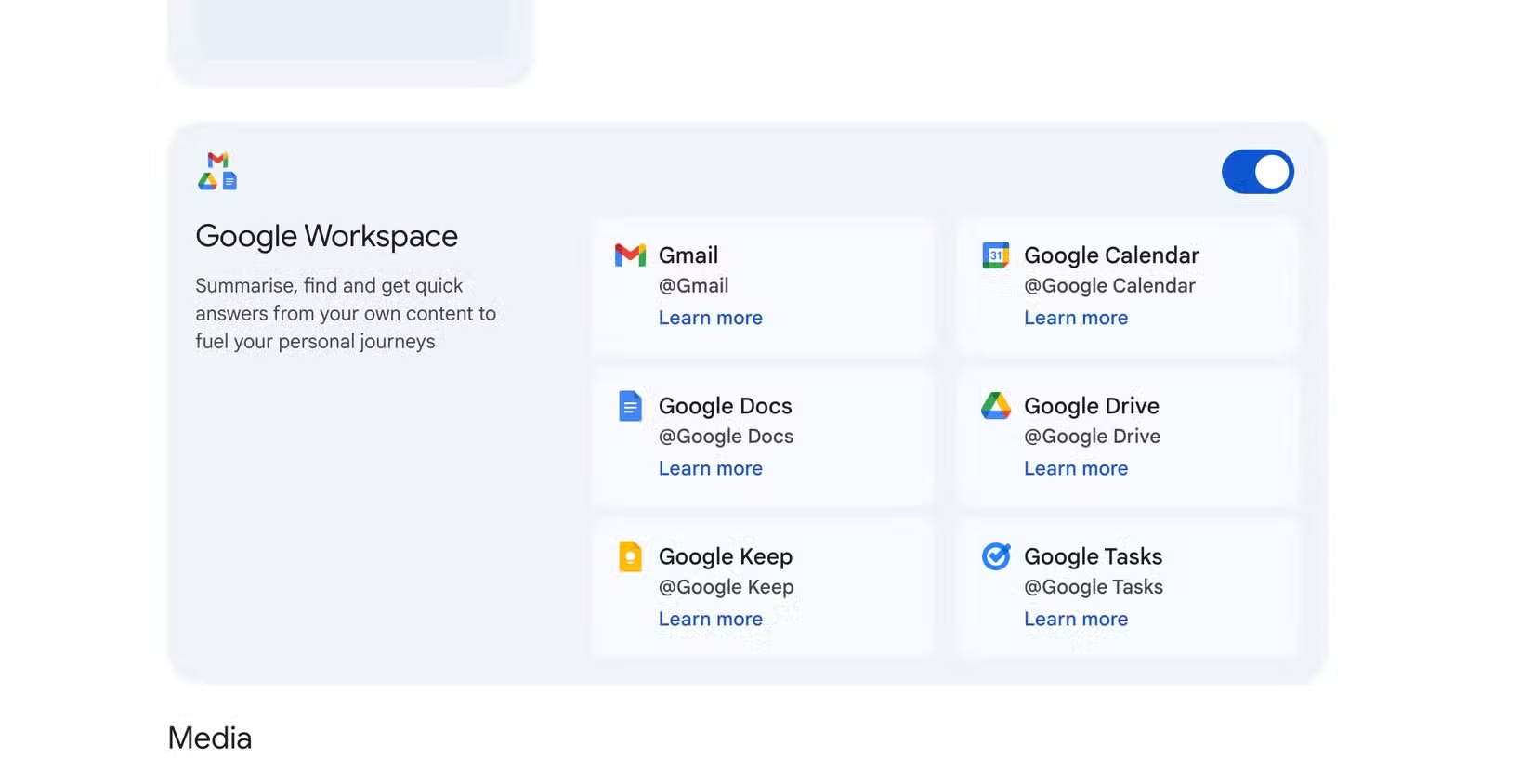
The fix wasn’t an advanced prompt or a secret hidden code. It was a single toggle switch buried in the settings, labeled Google Workspace.
I had ignored that setting for months. Maybe I was cautious about privacy, or maybe I assumed it was a premium feature I didn’t need.
To find it, go to Gemini on the web or mobile, open Settings, and find Connected apps. After I enabled the Google Workspace toggle, my workflow changed.
Suddenly, Gemini wasn’t only generating content based on the general internet; it was generating content based on my personal, private ecosystem — my emails, documents, Keep notes, and calendar.
This isn’t about giving away all your data. The integration is secure, and crucially, my data is not used to train the wider Gemini model.
This feature allows the AI to refer to my content on demand to provide answers and context only for me.
Overall, that little toggle unlocked Gemini’s true potential.
My new workflow
Information at my fingertips
The most immediate change is how effortless it is to retrieve information.
My old process involved opening separate tabs for Drive, Gmail, Docs, Keep, and more. Now, my entire digital life is unified under one intelligent interface.
For example, I maintain a detailed list of mineral and color stone collections in a specific Google Docs document.
Before, I would have to remember the exact file name and navigate the folder structure. Now, I can ask, “Get me the color stone collection from the Swami Jewels document” and receive answers in no time.
It even works with Gmail. Instead of finding my credit card bill in my Gmail inbox, I can ask Gemini to get my SBI Credit Card bill details, and it shows me the due date, total dues, minimum amount, and other relevant details in no time.
Then there is the magic of smaller tools like Google Keep. I use Keep for quick lists, like inventory for specialized kitchen equipment. If I’m at the store and need to check what I own, I don’t scroll through dozens of notes.
I ask Gemini to get me the kitchen equipment list from Keep Notes and get an answer instantly. The possibilities are truly endless.
Unusable to unstoppable
The lesson here isn’t only about a single toggle; it’s about realizing a tool’s true potential when you properly grant it access to your world.
I hated using Gemini when it felt like a disconnected AI chatbot, but enabling Google Workspace access transformed it into a genuine partner.
By allowing it to securely read, summarize, and reference my documents and emails, Gemini went from a generic search engine to a personalized brain I always wished I had.
If you have felt the frustration of an AI that doesn’t know your context, go make that tiny adjustment now.
Aside from that, here are other Gemini tricks that can help boost your productivity.
